iCE User Manual
Contents
- What is iCE?
- Getting Started
- The Interface
- Capture Modes
- Display Modes
- Annotations
- Dictionary Language
- Cantonese and Hokkien
- Tone Colors
- Pronunciation
- Adaptive Knowledge
- Settings
- Plans and Pricing
- Translation credits
- Keyboard Shortcuts
- Copying
- Favorites, Phrases and History
- Companion Window
- AI Integration (MCP)
- Troubleshooting
- System Requirements
- Support
What is iCE?
iCE is a small desktop window that explains the Chinese text in front of you, whatever program you happen to be reading it in. It waits in your system tray, and when you copy, select or point at Chinese, it shows the pinyin, the tone of each character and a definition, and then reads the text aloud.
The dictionary, the voice and the character recognition all run on your own computer. Only online sentence translation, which is part of iCE Pro, sends the text you read over the internet.
Getting Started
- Download iCE from loqu8.com/ice.
- Launch iCE. Its icon appears in the system tray on Windows and Linux, and in the menu bar on a Mac.
- Answer the short welcome questions.
- Copy some Chinese text, and the popup appears with the text explained.
- Click any word to hear it and to see its full entry.
The welcome questions ask which language you want your definitions in, which iCE guesses from your computer’s language, and how much Chinese you already know. A heritage speaker is also asked which variety of Chinese was spoken at home, so that iCE can choose a fitting voice. Such a speaker may then mark the words already known, and iCE will leave them unexplained. Clipboard capture is switched on when you finish, and every choice can be changed later in Settings.
The Interface
Popup Window
The popup is a compact window that stays above your other windows while you read. It opens near the text you captured, and it hides itself when you click somewhere else, unless you have pinned it.

The text you captured fills the middle of the popup, with pinyin and tone colors over each word. When the text is a single word, three tabs appear under the title bar: Annotate shows the word, Detail shows its full entry, and Translate, which is part of Pro, shows a translation.
Toolbar
The buttons along the top of the popup act on the text you captured. The buttons on the left appear only when there is text in the popup, while those on the right are always present.
| Button | What it does |
|---|---|
| Repeat | Reads the text over and over, with a short pause between readings, until you click it again |
| Speak | Reads the text aloud once, or stops the reading |
| Star | Saves the sentence to your Phrases |
| Copy | Copies the text to the clipboard |
| More (⋮) | Opens a menu with Translate, Copy+ Rubify, Copy+ Table, tone colors, Text input, Screenshot and Send feedback |
| Voice | Shows the voice in use, and lets you choose another |
| Study Companion | Opens the companion window |
| Pin | Keeps the popup open when you click in another program |
| Close | Hides the popup, while iCE keeps running in the tray |
Status Bar
On the left of the bar along the bottom of the popup is your plan (Free, Pro or the days left in your trial), and clicking it opens your account in the companion window. Beside it is the capture line, such as "● Clipboard" or "○ Off", and clicking it opens a menu that switches each capture mode on or off. The iCE icon and the version number stand at the right end of the bar.
If you turn on Show status bar details in Settings, the bar also shows how many characters and words the text holds, and how many milliseconds the lookup took.
System Tray
iCE lives in the system tray on Windows and Linux, and in the menu bar on a Mac. The icon is sepia when every capture mode is off, blue when Highlight is on, and red when any other capture mode is on.
The tray menu offers Show/Hide Window, Show Last Lookup, a check box for each capture mode, Capture Off and Quit. On the free plan the Pro modes carry a padlock, and choosing one opens the upgrade page in the companion window.
Capture Modes
Capture is how text reaches iCE without your typing it. There are three capture modes, and they may all be on at once.
Clipboard Capture (Free)
When Clipboard capture is on, any Chinese text you copy in any program is looked up at once. It is free on every plan, and on the Mac it is the way to capture text you have selected (select it, then press Cmd+C). On Linux it needs an X11 session, because a Wayland session does not allow iCE to watch the clipboard.
LiveScan (OCR) (Pro)
LiveScan reads the Chinese under your mouse pointer, so you need neither select nor copy anything. It recognizes the characters on the screen itself, which means it works on pictures, subtitles, scanned pages and games as well as on ordinary text.
- Open the capture menu from the status bar or the tray, and turn on LiveScan (shown there as OCR).
- Rest the pointer on Chinese text in any program.
- Read the result in the popup, which follows the text you point at.
The character recognition runs on your own computer. On a Mac, LiveScan needs the Screen Recording permission, and the popup shows a button that opens the right page of System Settings when the permission is missing.
LiveScan reads the text once the pointer has rested on it for a moment, a third of a second at first. A longer wait, set by the Hover delay on the Popup page of Settings, keeps a passing pointer from opening the popup.
Highlight Capture (Pro, Windows and Linux X11)
Select Chinese text in any program by double-clicking a word, triple-clicking a paragraph or dragging across it, and iCE looks it up without your pressing Copy. iCE copies the selection, reads it, and then puts your clipboard back the way it was. It never sends a copy keystroke into a terminal or into Excel.
On Windows, in Word, Chrome and Edge, iCE reads the selection through the accessibility interface instead, and your clipboard is left alone. In Chrome the first selection after Chrome starts is still read by a copy, and later ones are read through accessibility. In an Edge InPrivate window Windows marks every copy as private, so when the accessibility read cannot answer, iCE does not fall back to a copy, and the selection goes unread by design. Use LiveScan in that case.
To choose which selections are looked up, turn on Highlight only while holding Ctrl in Settings. iCE will then read a selection only when Ctrl is held as you release the mouse.
With Highlight and Clipboard both on, a selection is looked up once, and a copy you make yourself is looked up once and stays on your clipboard.
Highlight is not offered on the Mac, because every Mac build of iCE is sandboxed, and a sandboxed app cannot copy from other programs. It is not offered under Wayland on Linux either. In both places, use Clipboard capture for text you can select, and LiveScan for text inside pictures.
Hear First, Then Look
On the Popup page of Settings, the choice Show the popup when text is captured can be set to Only while I hold Ctrl (Control on a Mac). A capture is then read aloud and the popup stays hidden, so that you try to understand what you hear before the answer appears. Hold Ctrl as you capture, and the popup opens with it. The choice needs Auto-pronounce to be on, and Settings says so when it is off.
Text Input
To type or paste text yourself, choose Text input from the More (⋮) menu, and a box opens at the top of the popup. It is free and always available, and Escape closes it.
Show Last Lookup
Show Last Lookup brings back the popup with your most recent lookup, which is useful when the popup has closed before you finished reading. Use the tray menu, or press Win+Alt+L on Windows (Control+Command+L on a Mac, Super+Ctrl+L on Linux).
Display Modes
iCE chooses one of three layouts, according to how many words the captured text divides into.
Word Mode
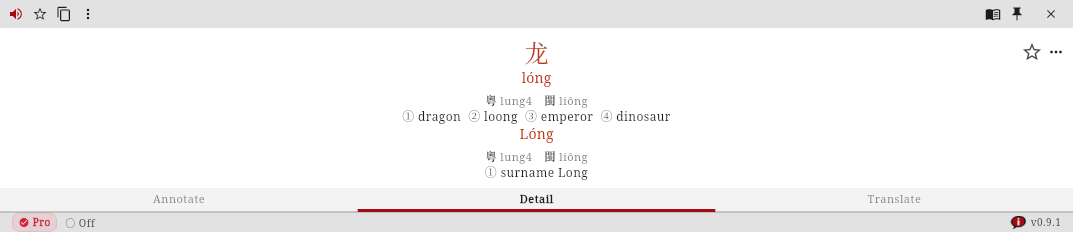
A single word is shown large, with its pinyin and tone colors, its definitions, and the Annotate, Detail and Translate tabs. A compound word can be opened into its parts, so that 法律 shows 法 and 律, each with its own meaning. With Show dialect forms turned on, the entry also gives the Cantonese and Hokkien readings.
Phrase Mode
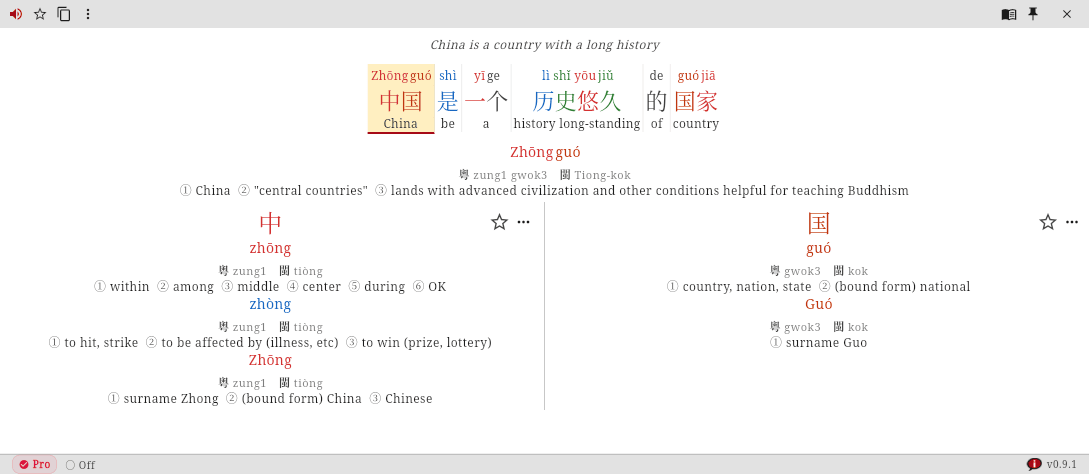
Text of two to fifteen words is shown as a phrase, with pinyin above each word and a translation line above the phrase when translation is available to you. Click any word in the phrase to open its entry below the phrase, together with its parts.
Passage Mode
Text of sixteen words or more is shown one sentence at a time, with a sentence bar for moving to the previous or next sentence. When you press Speak, iCE reads the passage sentence by sentence, and the view follows the voice. Click any word to open its entry below the sentence, as in phrase mode.

Annotations
iCE can set several kinds of help above and below the Chinese characters, and each kind is turned on or off in Settings. Pinyin gives the pronunciation in the Roman alphabet with tone marks (nǐ hǎo), and Bopomofo gives it in the Zhuyin symbols used in Taiwan (ㄋㄧˇ ㄏㄠˇ). Definitions give a short meaning in the language you chose, and tone colors paint each character by its tone.
Ruby pinyin, ruby Bopomofo and ruby definitions place these in small type directly above or below each word, in the line of text itself. The HSK label shows the word’s level in the Chinese proficiency test, and Traditional shows the traditional characters in place of the simplified ones.


Dictionary Language
Its dictionary is Loqu8’s own Chinese dictionary (CC BY-SA 4.0), with definitions in 26 languages. It holds nearly 300,000 entries. The 26 languages are:
| Code | Language | Code | Language |
|---|---|---|---|
| ar | العربية (Arabic) | ko | 한국어 (Korean) |
| cs | Čeština (Czech) | ms | Bahasa Melayu (Malay) |
| de | Deutsch (German) | nl | Nederlands (Dutch) |
| el | Ελληνικά (Greek) | pl | Polski (Polish) |
| en | English | pt | Português (Portuguese) |
| es | Español (Spanish) | ro | Română (Romanian) |
| et | Eesti (Estonian) | ru | Русский (Russian) |
| fa | فارسی (Persian) | sv | Svenska (Swedish) |
| fr | Français (French) | th | ไทย (Thai) |
| hi | हिन्दी (Hindi) | tl | Filipino |
| hu | Magyar (Hungarian) | tr | Türkçe (Turkish) |
| id | Indonesia (Indonesian) | vi | Tiếng Việt (Vietnamese) |
| it | Italiano (Italian) | ja | 日本語 (Japanese) |
All 26 languages are free, and all of them are included in the app, so nothing more needs to be downloaded. Change the language under Settings, on the Display page.
Cantonese and Hokkien
iCE includes the readings of two other Chinese languages besides Mandarin. Cantonese readings are written in Jyutping (月 is jyut6) and appear for nearly every entry, and Hokkien readings are written in Pe̍h-ōe-jī, or POJ (月 is goe̍h), and appear for about two thirds of them.
The readings are hidden at first. Turn on Show dialect forms in Settings, and they appear in each word’s entry.
Tone Colors
iCE can color each character by the tone it is spoken in, and offers three settings. The iCE default colors are:
| Tone | Contour | Color | Example |
|---|---|---|---|
| 1st | High level (¯) | Red | 妈 mā |
| 2nd | Rising (/) | Orange | 麻 má |
| 3rd | Dipping (∨) | Green | 马 mǎ |
| 4th | Falling (\\) | Blue | 骂 mà |
| Neutral | Light and short | Gray | 吗 ma |
The Pleco setting follows the colors of the Pleco dictionary app, which are red, green, blue and purple for the four tones. The None setting prints every character in the same gray, and you can step through the three settings from the More (⋮) menu or choose one in Settings.
Pronunciation
iCE reads Chinese aloud with Kokoro, a neural voice that runs on your own computer. A single character is spoken from a pack of recorded Mandarin syllables, and the credit for those recordings is shown in Settings, on the About page. If the Kokoro voice cannot start, iCE uses the voice built into your operating system. All of this is free.
Auto-Pronounce
Auto-pronounce reads every capture aloud as soon as it appears. It is free, it is on when you first install iCE, and you can turn it off in Settings, on the Speech page.
Click to Speak
Click any word in the popup to hear it. The Speak button reads the whole text, and the Repeat button reads it again and again with a pause between readings, so that you can listen and repeat after it.
Speech Rate
The speaking rate runs from half speed to double speed, and is set in Settings, on the Speech page. A slower rate helps you hear the tones, and a faster rate comes closer to ordinary conversation.
Adaptive Knowledge
iCE keeps a quiet record of the words you meet, and gradually takes the help away from the ones you have learned, so that the new words stand out. It models your memory with FSRS-6, a spaced-repetition method, and asks for no drilling.
Seeing a word again and again in what you read counts as passive learning, and as the word settles in your memory its pinyin and definition fall away. Clicking a word that has lost its help counts as a sign that you have forgotten it, so iCE restores the full help at once and records the lapse. The word then fades again as you meet it in your reading.
| Level | What you see | When |
|---|---|---|
| Full | Pinyin, definition and tone color | New words, and words you are still learning |
| Learning | Pinyin, definition and tone color | Words you recently forgot, or are still settling |
| Known | Tone color, slightly faded | Words seen often, with a steady memory |
| Mastered | Tone color, heavily faded | Words held in long-term memory |
You choose how much of this you see under Known word display, on the Annotate page of Settings. Dim known words, the first choice, takes the help away and fades the character as the word settles. Hide annotations takes the help away but leaves the character at full strength. Show all keeps the full help on every word. Your record of what you know is kept whichever you choose.
Your progress is shown in the companion window, where the Words tab lists every word iCE is tracking and its stage of learning. You may also mark a word known, or send it back to the start, from the menu that opens when you right-click it.
Settings
Settings are kept in the companion window, which the Study Companion button in the popup opens, on its Settings tab. The tab is divided into the eight pages below, and a change made on any of them reaches the popup at once.
- Display sets the definition language, the definitions and the tag that names their dictionary, pinyin, Bopomofo, HSK labels and traditional characters, and the words you have learned.
- Annotate sets the tone colors, the tone marks and tone numbers, the ruby lines, the dialect readings, how words you know are shown and the spacing of pinyin.
- Speech sets auto-pronounce, the speaking rate, the pause between words and the voice that reads to you.
- Translate sets the translation engines, the language to translate into, and whether the things you capture are translated.
- Dictionaries is where you buy the Technical Dictionaries, switch them off or on, and decide whether AI assistants may see them.
- Popup sets pin mode, when a capture shows the popup, the status bar details, how far a word opens into its parts, the text zoom (50% to 300%), the LiveScan hover delay, the Copy and Copy+ formats, and the Highlight Ctrl option on the computers where Highlight is offered.
- AI Connect shows how to connect an AI assistant to iCE, and gives the address and token it needs.
- About shows the version, the dictionary, the data sources and credits, the setting for usage data, and a link to support.
Plans and Pricing
Free
iCE is free to use without an account, and the free plan includes everything in the list below.
- Dictionary lookup, with pinyin, tone colors and definitions in all 26 languages.
- Clipboard capture, and the box in which you type or paste text yourself.
- The Kokoro voice, the recorded Mandarin syllables for single characters, and auto-pronounce.
- Adaptive knowledge, and review of the words you are learning in the companion window.
- Favorites, phrases and history, with export of your favorites and history to Anki or CSV.
An export uses the standard dictionary. Senses from the Technical Dictionaries stay inside iCE, and the export says so when it leaves them out.
Pro
iCE Pro costs US$69 a year, plus tax where applicable, for one person on up to three of their own computers. It adds the four features listed below to the free plan.
- LiveScan (OCR) reads the Chinese under your mouse pointer, in any program and in pictures.
- Highlight capture reads what you select, on Windows and on Linux under X11.
- Online sentence translation translates whole sentences and passages, and needs an internet connection. See Translation credits.
- Custom words are entries that you write and add to the dictionary yourself.
The yearly subscription is the only Pro plan on sale, since the monthly and lifetime plans have been withdrawn.
Free Trial
A copy of iCE downloaded from loqu8.com starts a 30-day trial of Pro on its first launch, and asks for no card.
When the trial ends, the Pro features switch off, and there are no free tries of them afterwards. iCE turns off LiveScan and Highlight, and if they were your only capture modes it turns Clipboard capture on in their place.
Technical Dictionaries
The Technical Dictionaries add 481,788 Chinese–English entries in medicine, information technology and civil engineering, from the CJK Dictionary Institute. They appear in the popup beside the everyday dictionary, and their definitions are in English. They cost US$99, bought once, and keep working if your Pro subscription lapses. Buy them in Settings, on the Dictionaries page. After the purchase they download and switch on by themselves. On another computer, sign in with the email you bought them with, and follow the link iCE sends you.
Translation credits
Looking up words uses no credits. Online translation of a sentence does: Pro includes 25,000 credits a month, enough for about 50 pages of Chinese. A credit is one character of text, with at least 20 for each sentence, and each translation engine you choose counts separately. Translating the same sentence again soon after uses no credits. You can use up to 20,000 credits in one day. Unused credits carry over to the next month, and then expire.
Everything that runs on your computer uses no credits: LiveScan, Highlight, the offline voice, Favorites and export. When the credits run out, online translation pauses until they renew, and the rest of Pro keeps working.
Keyboard Shortcuts
| Shortcut | Action |
|---|---|
| Win+Ctrl+I (Control+Command+I on a Mac, Super+Ctrl+I on Linux) | Show or hide iCE, from any program |
| Win+Alt+L on Windows (Control+Command+L on a Mac, Super+Ctrl+L on Linux) | Show the last lookup, from any program |
| Escape | Close the text box if it is open, or else hide the popup |
| Click the tray icon | Show or hide the popup (Windows) |
The capture modes have no keys of their own, and are switched from the tray menu or the capture line in the status bar. Settings, on the Popup page, lists both keys as your computer names them, and marks a key that another program has already taken.
Copying
The Copy button copies the text in the popup as plain characters. Under Copy format on the Popup page of Settings it can add the pinyin after the characters, or add the pinyin and then a line for each word with its meaning. The More (⋮) menu adds Copy+ Rubify, which gives HTML with the pinyin set above each character, and Copy+ Table, which gives tab-separated rows for a spreadsheet.
Right-click any word for more choices. The Copy submenu copies the traditional or simplified form, the pinyin, the Bopomofo or the definition alone, and also offers the Rubify, Table and CEDICT forms for that word.
Favorites, Phrases and History
Click the star beside any word to keep it among your favorites, and the star in the toolbar to keep the whole sentence among your phrases. Both are kept from one session to the next.
iCE also records every word you look up, together with how often you have looked it up. The history lets the adaptive knowledge system know which words you have met, and Clear all, in the History view’s menu, empties it.
Custom Words
With iCE Pro you can add words of your own. Press + on the Words tab of the companion window, and give the characters, the pinyin and a meaning. The Custom words view lists every word you have added, where you can change its pinyin or meaning, or delete it. Deleting a word is open to every plan.
The Favorites and History lists each have an Export menu with two choices, Copy to clipboard and Save as Anki CSV. The CSV file has the columns Traditional, Simplified, Pinyin and Definition, and the history file adds the number of times each word was seen. Export is free in every edition of iCE.
Companion Window
The companion window is the larger window in which you study, review and change settings, and the Study Companion button in the popup opens it. It has the five tabs listed below.
- Words lists every word iCE is tracking, in four views called All, Starred, History and Custom words.
- Phrases lists the sentences you have captured, and keeps the ones you have starred.
- Search looks up any word by its characters, by its pinyin or by an English meaning.
- Account shows your plan and your trial, with the buttons to buy and to sign in with the email address you paid with, which brings a purchase back on another computer or after reinstalling.
- Settings holds every setting described in the Settings section of this manual.
A sixth tab, Debug, appears only when Show diagnostics tab is turned on, on the About page of Settings.
AI Integration (MCP)
iCE is a Model Context Protocol (MCP) server, so an AI assistant such as Claude can work with it directly. An assistant can look up words and phrases, read what you capture, pronounce text, manage your favorites and review, change settings, and take screenshots of iCE.
The server listens on port 8888 of your own computer and on no other network address, and each request must carry a token that iCE keeps on your computer. Settings, on the AI Connect page, shows the token, which you may copy or replace, and adds iCE to an assistant for you.
An assistant receives the everyday dictionary. It sees the Technical Dictionaries only if you allow it on the Dictionaries page, and then only up to a daily number of entries.
Troubleshooting
LiveScan is not capturing text
Check that LiveScan is on, either in the capture line of the status bar or in the tray menu, and that your plan or trial includes Pro. On a Mac, give iCE the Screen Recording permission in System Settings, and then reopen iCE. If the text can be selected, you can also select it (Highlight, on Windows and Linux X11) or copy it (Clipboard).
Clipboard capture does nothing on Linux
Clipboard capture and Highlight need an X11 session, and under Wayland they do not start. Log in to an X11 session, or use LiveScan.
No pronunciation
iCE speaks with the Kokoro voice, which needs its model files in the iCE data folder. If Kokoro cannot start, iCE uses the voice built into your operating system, and the voice button in the popup names the voice it is using.
The popup does not appear
Press Win+Ctrl+I (Control+Command+I on a Mac) to show the popup, or click the tray icon. If it disappears as soon as you click elsewhere, press the Pin button, or turn on pin mode in Settings, on the Popup page.
A shortcut does nothing
Another program may own the key. Settings, on the Popup page, marks such a key under Shortcuts. On Windows 11, Win+Ctrl+L belongs to Live Captions, which is why Show Last Lookup is Win+Alt+L there.
The dictionary shows no results
iCE must open its own dictionary file, ice.xdb. If a lookup returns only single characters, or nothing at all, iCE has probably opened a different dictionary or none, so write to support@loqu8.com and give the version shown on the About page.
System Requirements
- Windows: Windows 10 or 11, 64-bit (x64).
- macOS: macOS 13.4 or later, on Apple silicon or Intel.
- Linux: a 64-bit (x64) distribution, as an AppImage (also offered as .deb and .tar.gz). Clipboard capture and Highlight need an X11 session.
- Internet: a connection is needed only for online sentence translation, for buying and for activating a license, while the dictionary, the voices and the character recognition all work offline. If usage data is on, iCE also sends anonymous usage counts, as the privacy policy describes.
Support
- Website: loqu8.com/ice
- Feedback: choose Send feedback from the More (⋮) menu in the popup
- Email: support@loqu8.com