iCE User Manual
Complete guide to Loqu8 iCE — instant Chinese text comprehension for your desktop.
Contents
Getting Started
- Download from ice.loqu8.com for Windows, macOS, or Linux
- Launch the app — it appears as an icon in your system tray
- Click the tray icon to open the popup window
- Type or paste Chinese text, or enable LiveScan to capture text from your screen
- Tap any word to hear it pronounced and see its full definition
On first launch, iCE walks you through a brief onboarding to set your native language and preferences.
The Interface
Popup Window
iCE's main interface is a compact popup window. The top area shows annotated Chinese text with pinyin, tone colors, and definitions. The bottom area shows detailed word information when you tap any word.
The popup appears when you click the tray icon or press the global hotkey. It stays on top of other windows so you can reference it while reading.

Toolbar
| Button | What it does |
|---|---|
| LiveScan | Enable screen capture — hover over Chinese text to look it up |
| Highlight | Drag to select a region of screen text |
| Speak | Read the current text aloud |
| Pin | Keep the popup visible (disable auto-dismiss) |
| Settings | Open the settings panel |
Status Bar
The bottom bar shows your tier badge (Free, Pro, or Trial countdown), lookup time, and version. Tap the tier badge to manage your account.
System Tray
iCE lives in your system tray (Windows/Linux) or menu bar (macOS). The tray icon changes color to show capture status. Right-click for quick actions: toggle capture, show popup, open settings, or quit.
Capture Modes
LiveScan (Pro)
The flagship capture mode. When enabled, iCE watches your mouse cursor and automatically looks up Chinese text you hover over. Works across any application — browsers, PDFs, email, chat apps, documents.
Highlight Capture (Pro)
Drag to select a rectangular region of the screen. Best for text in images, dense layouts, or capturing a specific paragraph.
Manual Input
Type or paste Chinese text directly into the popup. Always available, no Pro subscription required.
Display Modes
Word Mode
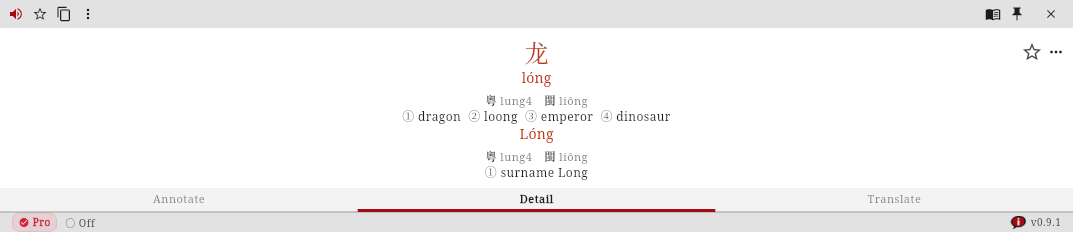
For single words or short compounds (1–4 characters). Shows the character with large pinyin, full definition with multiple entries, parts breakdown for compound words (e.g., 法律 → 法 + 律), and character data including radical, stroke count, HSK level, and frequency.
Phrase Mode
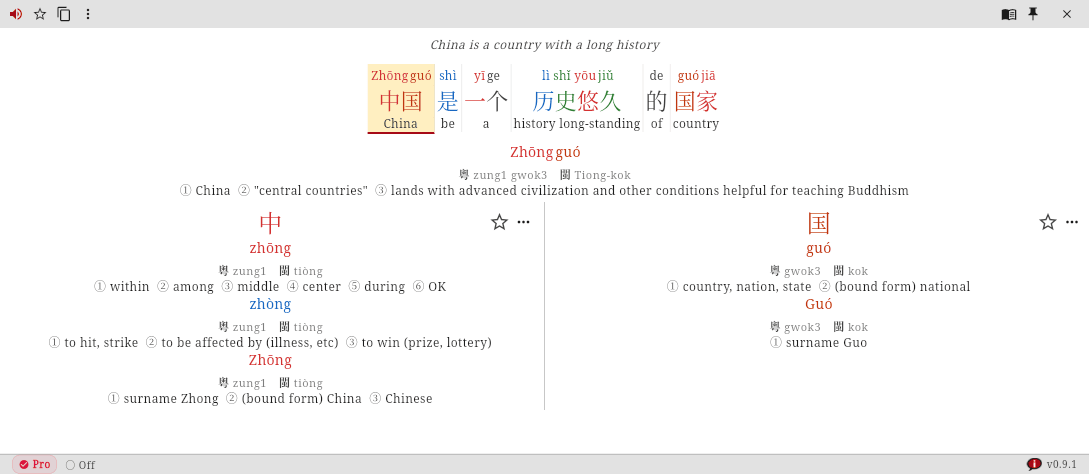
For sentences and short phrases (5–20 characters). Shows the full phrase with inline pinyin and tone colors. Tap any word to expand its detailed entry below.
Passage Mode
For longer text (20+ characters). Shows the full annotated passage with paragraph breaks, ruby pinyin above each word, and optional ruby definitions below.

Annotations
- Pinyin — Romanized pronunciation with tone marks (e.g., nǐ hǎo)
- Bopomofo — Zhuyin phonetic symbols (ㄅㄇˇ ㄏㄚˇ) for Taiwan's system
- Definitions — Brief translation in your selected language
- Tone colors — Characters colored by tone
- HSK level — Chinese proficiency level (HSK1–HSK9)
- Ruby pinyin — Small pinyin shown directly above each character inline
- Ruby definitions — Small definitions shown directly below each character inline


Toggle these in the Settings panel → Display section. Pinyin and Bopomofo are mutually exclusive.
26 Definition Languages
iCE supports definitions in 26 languages. Change the definition language in Settings → Definition Language.
| Code | Language | Code | Language |
|---|---|---|---|
| ar | العربية (Arabic) | ko | 한국어 (Korean) |
| cs | Čeština (Czech) | ms | Bahasa Melayu (Malay) |
| de | Deutsch (German) | nl | Nederlands (Dutch) |
| el | Ελληνικά (Greek) | pl | Polski (Polish) |
| en | English | pt | Português (Portuguese) |
| es | Español (Spanish) | ro | Română (Romanian) |
| et | Eesti (Estonian) | ru | Русский (Russian) |
| fa | فارسی (Persian) | sv | Svenska (Swedish) |
| fr | Français (French) | th | ไทย (Thai) |
| hi | हिन्दी (Hindi) | tl | Filipino |
| hu | Magyar (Hungarian) | tr | Türkçe (Turkish) |
| id | Indonesia (Indonesian) | vi | Tiếng Việt (Vietnamese) |
| it | Italiano (Italian) | ja | 日本語 (Japanese) |
Free users get English plus their system language. Pro users unlock all 26. Language packs are included in the app — no additional download required.
Cantonese & Hokkien
Cantonese — Choose between two romanization systems:
- Jyutping (粵拼): Standard romanization (e.g., 月 = jyut6)
- Yale (耶魯): Textbook romanization (e.g., 月 = yuht)
Hokkien — Uses POJ (白話字 Pe̍h-ōe-jī) romanization (e.g., 月 = goe̍h).
Dialect pronunciations appear in the word detail view when available (~17K Cantonese entries, ~5.5K Hokkien entries).
Tone Colors
Characters can be colored by their pronunciation tone. Three presets are available:
| Tone | Contour | Color | Example |
|---|---|---|---|
| 1st | High level (¯) | Red | 妈 mā |
| 2nd | Rising (/) | Dark Orange | 麻 má |
| 3rd | Dipping (∨) | Green | 马 mǎ |
| 4th | Falling (\) | Blue | 骂 mà |
| 5th | Neutral | Black | 吗 ma |
Other presets: Pleco (follows the Pleco dictionary app's colors) and No color (default text color). Change in Settings → Tone Color Preset.
Pronunciation
Auto-Pronounce (Pro)
When enabled, iCE automatically speaks any captured text aloud. Toggle in Settings → Auto-Pronounce.
Tap to Speak
Tap any word in the popup to hear it pronounced. This is always free.
Speech Rate
Adjust pronunciation speed in Settings → Speech Rate. Slower rates help with tone recognition; faster rates approximate natural conversation speed.
Adaptive Knowledge
iCE tracks which words you've seen and gradually dims familiar vocabulary so new words stand out. This happens automatically — no flashcard drilling required.
- Words you look up repeatedly are marked as "known"
- Known words are displayed at reduced opacity (4 dimming levels)
- New or rare words appear at full brightness, drawing your attention
- The system uses FSRS-6 (a spaced repetition algorithm) to model your memory
Display options (Settings → Known Word Display):
- Show All — no dimming, all words at full opacity
- Dim Known — gradually dim familiar words
- Hide Known — fully hide words you've mastered
Settings
Open Settings via the gear icon in the toolbar.
Display
- Show Pinyin / Show Bopomofo — pronunciation system (mutually exclusive)
- Show Definition — show/hide word definitions
- Tone Color Preset — iCE Default, Pleco, or None
- Zoom Level — scale the popup content (0.5x–2.0x)
- Prefer Traditional — show traditional characters instead of simplified
- Ruby Pinyin / Ruby Definitions — inline annotations above/below characters

Behavior
- Auto-Pronounce (Pro) — speak text automatically on capture
- Speech Rate — pronunciation speed (0.5x–2.0x)
- Dismiss on Blur — auto-hide popup when clicking elsewhere
- Pin Popup — keep popup visible until manually dismissed
Plans & Pricing
| Free | Pro | |
|---|---|---|
| Manual text input | ✓ | ✓ |
| Dictionary + pinyin + tone colors | ✓ | ✓ |
| Tap-to-speak | ✓ | ✓ |
| Favorites & history | ✓ | ✓ |
| LiveScan OCR | 3 free tries | ✓ |
| Highlight Capture | 3 free tries | ✓ |
| Auto-Pronounce | 3 free tries | ✓ |
| Definition languages | English + system | All 26 |
| Browser capture | — | ✓ |
Pricing: Monthly $9/mo · Annual $69/yr · Lifetime $149
New users can start a 7-day free trial of all Pro features. No credit card required.
Keyboard Shortcuts
| Shortcut | Action |
|---|---|
| Global hotkey | Toggle popup visibility |
| Click tray icon | Show/hide popup |
| Escape | Dismiss popup |
| Ctrl+C | Copy current text (using selected format) |
Troubleshooting
LiveScan isn't capturing text
- Ensure LiveScan is enabled (active icon in toolbar)
- Check that the text is actual rendered text, not an image
- For browser text, install the iCE browser extension for better accuracy
- Try Highlight Capture as a fallback
No pronunciation / speech not working
- Verify the Kokoro TTS model files are present in the data directory
- If Kokoro is unavailable, iCE falls back to the system's native TTS engine
- Check Settings → Speech Rate isn't set to 0
Popup doesn't appear
- Click the system tray icon to toggle the popup
- Check that "Dismiss on Blur" isn't hiding the popup immediately
- Try enabling "Pin Popup" in settings
System Requirements
| Platform | Requirement |
|---|---|
| Windows | Windows 10 or later (x64) |
| macOS | macOS 12 Monterey or later (Apple Silicon and Intel) |
| Linux | Ubuntu 22.04 or later, or equivalent (x64) |
| Disk space | ~930 MB |
| RAM | 512 MB recommended |
| Internet | Not required for core features |